
Deliveries → Tax treatment
Understanding the Agreed Amount Includes taxes toggle
Learn what the deliverable tax toggle means, how it changes invoice calculations, and how to review inclusive and exclusive amounts.
Agreed Amount Includes taxes is a setting on a deliverable, not a second tax rate or a discount. It tells Collabcy whether the amount you entered is already the final gross amount agreed with the brand. The setting is available on normal deliverables and in the Create Series Deliverables flow.
Choose the right setting
- 1Turn on Agreed Amount Includes taxes when the commercial agreement says the stated amount is the final amount payable, with applicable tax already included.
- 2Leave it off when the stated amount is the taxable base and tax should be added to the invoice total.
- 3Use the amount from the agreement in the collaboration currency. Do not enter a pre-tax amount and then mark it as tax-inclusive.
- 4For a normal deliverable, set the toggle while creating or editing the deliverable. For a series, set it during series creation; the setting is carried to each generated child.
What the toggle does—and does not do
- It changes how the invoice tax engine interprets the deliverable amount; it does not change the amount you agreed with the brand.
- It does not select a tax rate, create a tax rule, or replace your configured tax settings.
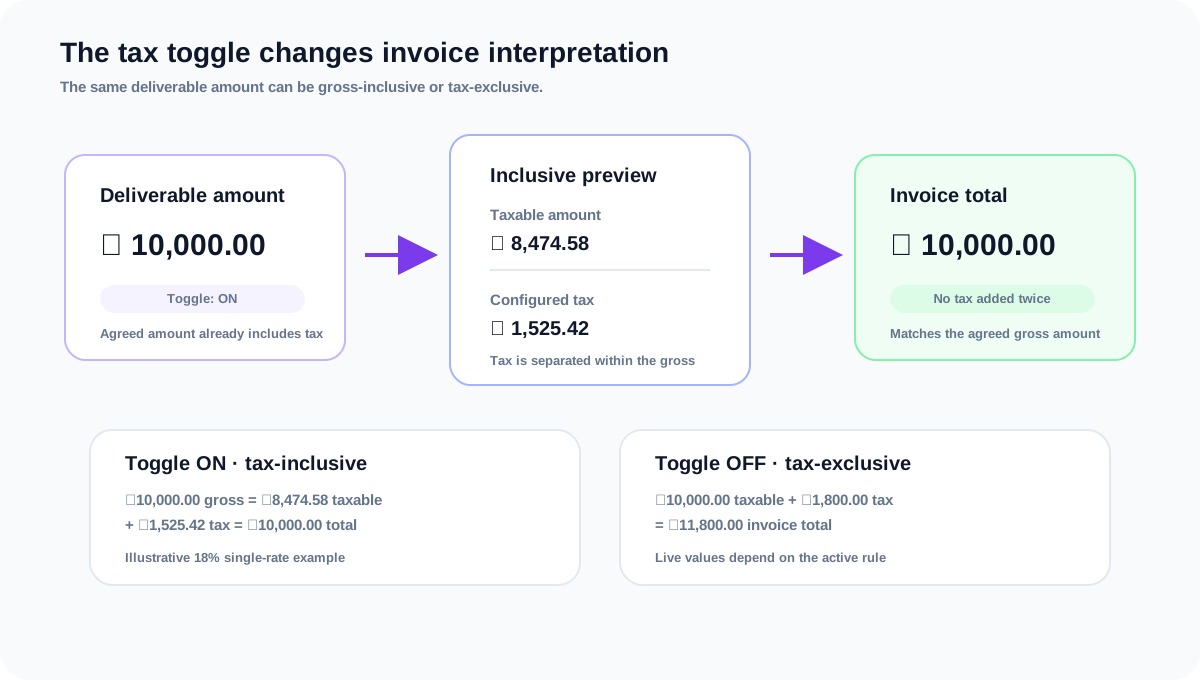
- It does not add a second tax line. For inclusive treatment, the invoice separates the gross amount into a taxable amount and tax.
- It travels with each series child. A series can contain children with different treatments if the underlying agreements require it.
Simple example
- 1Assume a deliverable amount of ₹10,000.00 and one simple 18% tax rule, with no flat tax components.
- 2With the toggle on, ₹10,000.00 is the gross agreed amount. The illustrative taxable amount is ₹8,474.58, the tax is ₹1,525.42, and the invoice grand total remains ₹10,000.00.
- 3With the toggle off, ₹10,000.00 is the taxable base. The illustrative tax is ₹1,800.00 and the invoice grand total becomes ₹11,800.00.
- 4The live result can differ from this simple example when the active rule has multiple components, flat amounts, different rates, currency precision, or place-of-supply logic.
How it affects invoicing
- 1When you create a delivery-based invoice, the deliverable amount and remaining balance come from the deliverable record. The linked line cannot be changed into an unrelated manual unit price.
- 2For a tax-inclusive deliverable, the invoice review shows the agreed gross amount, the taxable amount derived from it, the resolved tax components, and the same gross amount as the grand total.
- 3For a tax-exclusive deliverable, the agreed amount is the taxable base and the resolved tax is added to calculate the grand total.
- 4For a series invoice, each selected child keeps its own tax treatment and allocation. The grouped line total still equals the selected child allocations, while the tax preview accounts for each child’s treatment.
- 5Payment tracking uses the invoice grand total. Recognized collaboration revenue continues to exclude tax and fees.
Review checklist
- 1Compare the toggle with the wording in the brand agreement before creating the invoice.
- 2Confirm the currency and agreed amount; never subtract an estimated tax amount manually from an inclusive deliverable.
- 3On the invoice Review step, read Taxable Amount, every tax component, and Grand Total together.
- 4If the result looks unexpected, check the active tax rule, seller and buyer locations, place of supply, component rates, flat components, and currency precision.
- 5For a partially invoiced or series deliverable, verify the remaining balance and child allocation as well as the tax preview.
Frequently asked questions
Does turning on the toggle change the deliverable amount?
No. It keeps the agreed amount but changes whether the invoice treats that amount as gross-inclusive or pre-tax-exclusive.
Will tax be added twice if the toggle is on?
No. The tax engine treats the stored amount as gross and separates the taxable amount and tax within that gross total.
Why is the taxable amount lower than the agreed amount?
Because the agreed amount already includes tax. The invoice exposes the pre-tax portion separately so the tax row and payable total can be audited.
Is this setting available only for series deliverables?
No. It is available on normal deliverables as well as the series creation flow. Series creation carries the selected treatment to each child.
Can a series contain both tax-inclusive and tax-exclusive children?
Yes. Each child carries its own treatment. The invoice wizard preserves those child settings and calculates the mixed series allocation using each child’s treatment.
What if the invoice preview does not match my estimate?
Do not edit the amount to force a match. Check the active tax rule, tax components, place of supply, currency precision, and seller and buyer details, then use the live preview as the source of truth.
Related guides
Creating invoices from series deliverables
Select all or part of a deliverable series, review the grouped invoice line, and create an invoice without losing child allocations.
Creating series deliverables
Create a scheduled set of independent deliverables with shared series details, individual amounts, and reviewable dates.
Creating and sending an invoice
Create an invoice from a collaboration, add line items, review tax and totals, then send it to the brand.