Invoices → Series Deliverables
Creating invoices from series deliverables
Select all or part of a deliverable series, review the grouped invoice line, and create an invoice without losing child allocations.
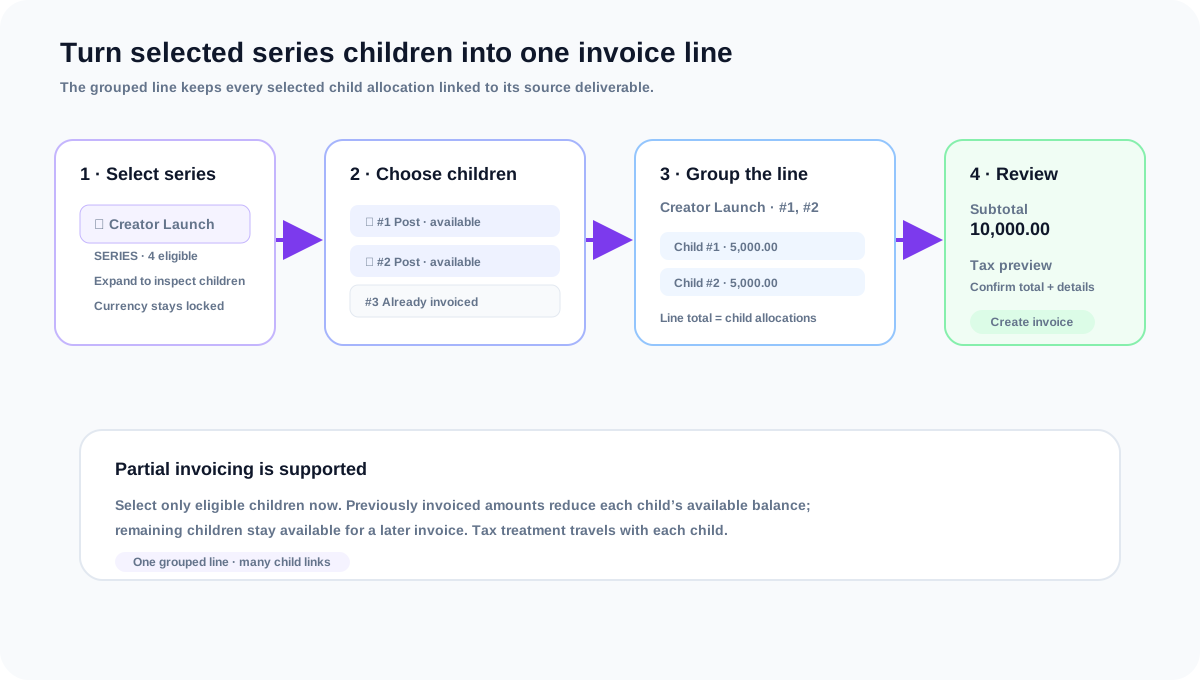
A series does not produce an invoice when it is created. To bill it, create an invoice from the collaboration and select the eligible series children in the delivery-based invoice flow. Collabcy keeps the children as the source of truth, then presents the selected children as one grouped series line with a child allocation for each selected deliverable.
Create the invoice
- 1Open the collaboration that owns the series and choose New Invoice. You can also open Invoices → New Invoice and select the collaboration.
- 2Keep Delivery-Based selected in the invoice wizard. The currency is locked to the collaboration currency.
- 3Find the series row in Select Deliveries. Expand it to see the individual sequence numbers and available balances.
- 4Select the series checkbox to select every eligible child, or expand the group and select only the children you want to bill now.
- 5Continue to Line Items. The selected children are grouped into one series line; its description includes the series title and sequence numbers, and its child allocations preserve each deliverable ID and amount.
- 6Check the grouped line total. The line total must equal the sum of its child balances, so the series line cannot be changed independently of its allocations.
- 7Continue through Details and Review, confirm the dates, recipient context, tax preview, and total, then create the invoice or save it as a draft.
Which children can be selected
- A child must be in an invoiceable delivery status and have a positive unpaid or partially unpaid balance.
- The child currency must match the collaboration invoice currency.
- A partially billed child appears with only its remaining available balance. Previously invoiced amounts are not offered again.
- Selecting some children creates a partial series invoice. The remaining children stay available for a later invoice.
- If no children are eligible, the series cannot be selected. Finish or correct the delivery and invoice history first, then return to New Invoice.
Review the grouped line
- 1Use the series label, reference, and # sequence numbers to confirm the intended children are included.
- 2Compare each child allocation with the available amount shown in Step 1. Do not replace a grouped line with a manual amount to work around a child balance.
- 3For a tax-inclusive child, the Review step can show its taxable amount separately from the agreed gross amount. Read the tax preview and grand total together.
- 4After creation, open the invoice detail page to download the PDF, send it, or record payments. The invoice and child deliverable history remain linked.
Frequently asked questions
Can I invoice only one deliverable from a series?
Yes. Expand the series and select only that eligible child. The invoice contains a grouped series line with one child allocation for the selected sequence.
Why is the unit price locked?
Delivery-based prices come from the child’s agreed or remaining billable amount. Locking them prevents the invoice form from creating a total that no longer matches the collaboration’s deliverable allocation.
Can I edit a series invoice later?
You can edit invoice details through the normal invoice edit flow, but the grouped allocation must remain consistent with its child deliverables. Review the invoice and child balances after saving.
Related guides
Creating series deliverables
Create a scheduled set of independent deliverables with shared series details, individual amounts, and reviewable dates.
Understanding the Agreed Amount Includes taxes toggle
Learn what the deliverable tax toggle means, how it changes invoice calculations, and how to review inclusive and exclusive amounts.
Creating and sending an invoice
Create an invoice from a collaboration, add line items, review tax and totals, then send it to the brand.